- 1. Getting Started
- 2. Understanding the Dashboard
- 3. Browsing Sets & Cards
- 4. Importing Cards to Shopify
- 5. Import Settings Explained
- 6. Live Price Syncing
- 7. Importing Sealed Products
- 8. Product Import Flow (Sealed Products)
- 9. Currency Detection
- 10. Where Prices Come From
- 11. Accreditation
- Support & Wholesale Access
Frequently Asked Questions #
TCG Importer #
Is there a Free version of TCG Importer?
Yes, we have a free trial and this lasts forever. You will be able to still use our app and check prices and you can use up to 5 imports every month giving you 60 imports for free a year.
I imported a Product/Card but it’s not showing on my website?
When you import cards you need to ensure 3 things have been set.
- Product has been set from Draft to Active.
- Publshing has been set to your sales channel (this option us underndeath the Draft/Active option in the product edit area)
- The collection that your product has been added to is also published to your sales channel (You can find this under Product > Collections)
Where can I get wholesale products to sell on my website?
You can use our official wholesale supplier TCG Wholesale HQ we do not have any other current suppliers and anyone claiming they are, are not legitimate suppliers.
You can find our official wholesaler here TCG Wholesale HQ
I am new and I need help with importing products
You can find a detailed video on how to import products for TCG Importer here Detailed Import Guide for TCG Importer App on Shopify
If I stop using TCG Importer will I lose all my imports?
Nope, you will keep all your imports, however live pricing syncs will no longer work for your products. If you do stop using TCG Importer, we hope that you come back in the future!
Where are all the prices on TCG Importer from?
All the prices are from our database which is actually sepearate from the app. The prices on the database are pulled from PriceCharting. You can find their information here
Some prices may vary ever so slightly due to exchange rates which are updated every hour.
How does Live Price Sync actually work?
When you enable Live Price Sync on a product, you’re basically saying “Hey TCG Importer, can you please keep this product updated automatically depending on the market value”. This means your product will maintain the market value for you so that you have peace of mind and never have to worry about updating the price. Cool right?
One of the things we highly recommend when enabling Live Price Sync, is to set a Safety Net Price so that if for whatever reason a product price drops that you are telling TCG Importer “Hey I want you to keep my product updated automatically BUT I don’t want you to ever drop below this price”.
How can I upgrade my subscription?
On the front page of the app you can select “Shop Settings” and then select “Upgrade Plan”. Choose the new plan and it will upgrade you.
Where can I change my default currency?
On the front page of the app, you will be able to find “Shop Settings” at the top right hand side, click this.
Under default currency drop down menu, you can select your currency.
Click Save and wait for the confirmation at the top left.
We have a full video on how to install the TCG Importer App that covers all the below.
1. Getting Started #
Install the App #
- Open the Shopify App Store.
- Search TCG Importer or click here
- Click Install and accept the required permissions.
Connect Your Store #
The importer will automatically detect:
- Your Shopify store currency
- Your existing product catalog
- Your active market settings
No additional setup is required.
2. Understanding the Dashboard #
After installation, You can access TCG Importer on the left hand panel of Shopify. When you click TCG Importer for the first time you’ll see the main dashboard showing:

3. Browsing Sets & Cards #
Step 1 — Select Card Importer #
Click into any TCG category to reveal all available sets.

Step 2 — Choose a Set #
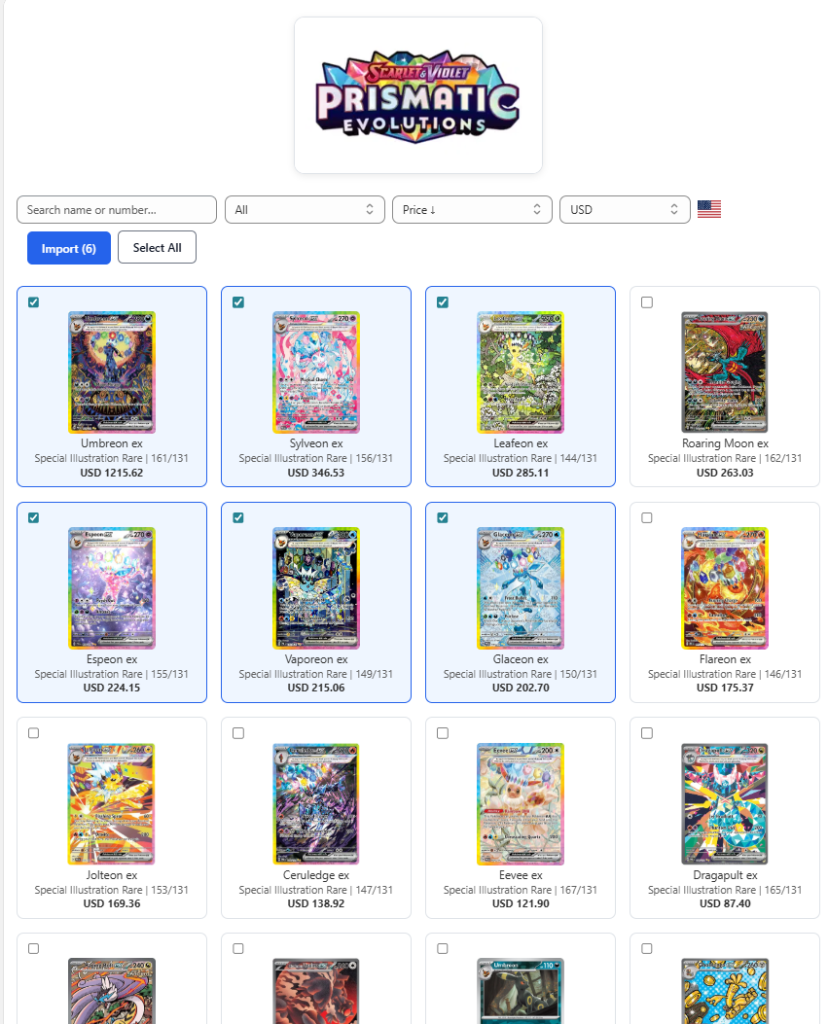
Inside a set you’ll see:
- Every card in that set
- Current market prices
- Product images
- Rarity & card condition options
- Selection checkboxes
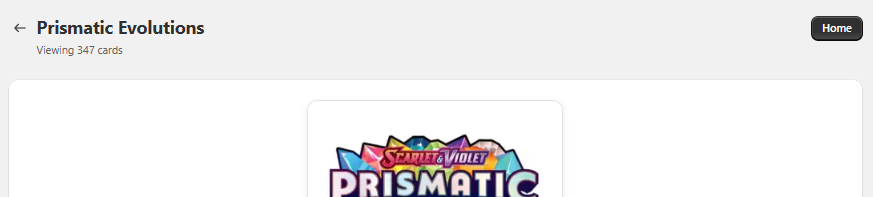
Back Buttons #
Every page includes a an easy-to-find Back Arrow or Home Button that lets you jump:
- Back a page
- Back to Home
4. Importing Cards to Shopify #
This is the core feature of TCG Importer.
Step 1 — Select Cards #
Tick the checkbox for all cards you want to import.
You can also click Select All at the top.
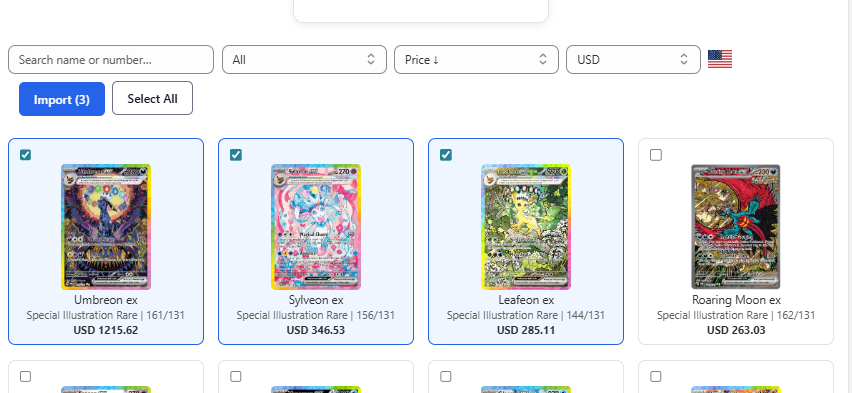
Step 2 — Click “Import Selected Cards” #
This opens the Confirm Import popup, where you can adjust settings before importing.
5. Import Settings Explained #
Inside the import popup you can configure:
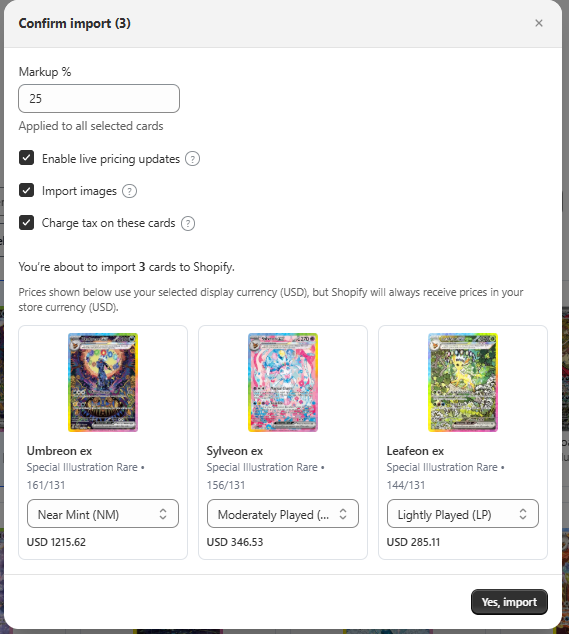
Import Images #
- Toggle ON to include card images.
- Images will be added to your Shopify product gallery.
Live Pricing Updates #
If enabled:
- Prices are automatically updated when market prices change.
- Updates happen every 4 hours.
- Prices change based on your store currency.
- Currency conversions are automatic.
- You can also set Live Pricing Sync per card, this will also give you an option to add a Safety Net Price
What is Safety Net Price?
Safety Net Price is a price you can set on a specific card or product when Live Pricing Sync is enabled. Safety Net Price is what price you do not want to go below incase the card or product drops in price.
Example: You set $200 for a card and the price of it goes from $250 down to $185. The price of the card will not go past your Safety Net price of $200.
If disabled:
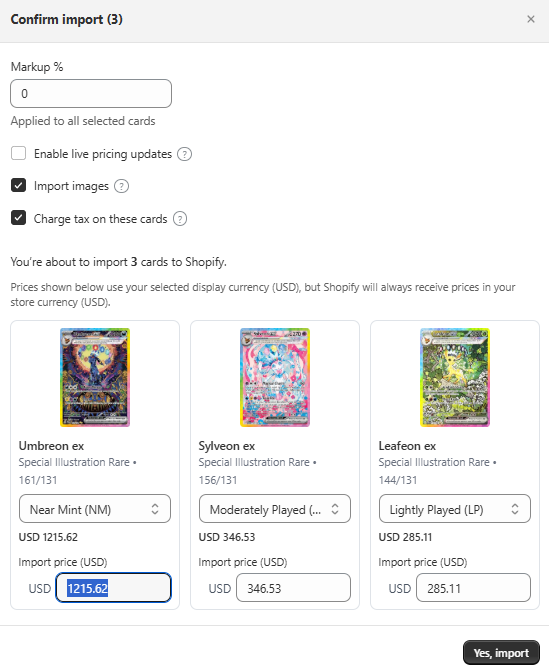
- You can manually set the price before import.
- The price will stay locked and won’t be updated automatically.
Card Condition #
Choose the condition for each imported card:
- Near Mint (NM)
- Lightly Played (LP)
- Moderately Played (MP)
- Heavily Played (HP)
- Damaged (DG)
Condition is stored in Shopify product metafields under:
Category → Condition
Rarity #
The card’s rarity is automatically detected and added to metafields:
- If a rarity doesn’t exist in your store metafield definitions, TCG Importer creates it for you.
Stored under metafields:
Category → Rarity
Charge Tax #
Tick this if you want Shopify to apply tax to the imported products. For example: if you charge GST in Australia you will select this to charge 10%.
If disabled:
- Shopify will mark “Charge tax” OFF.
Import Status #
All new imports are created as Draft products.
This lets you:
- Review them
- Adjust SEO
- Adjust images
- Check variants (if any)
When you’re ready, publish them normally in Shopify.
Final Import Check IMPORTANT #
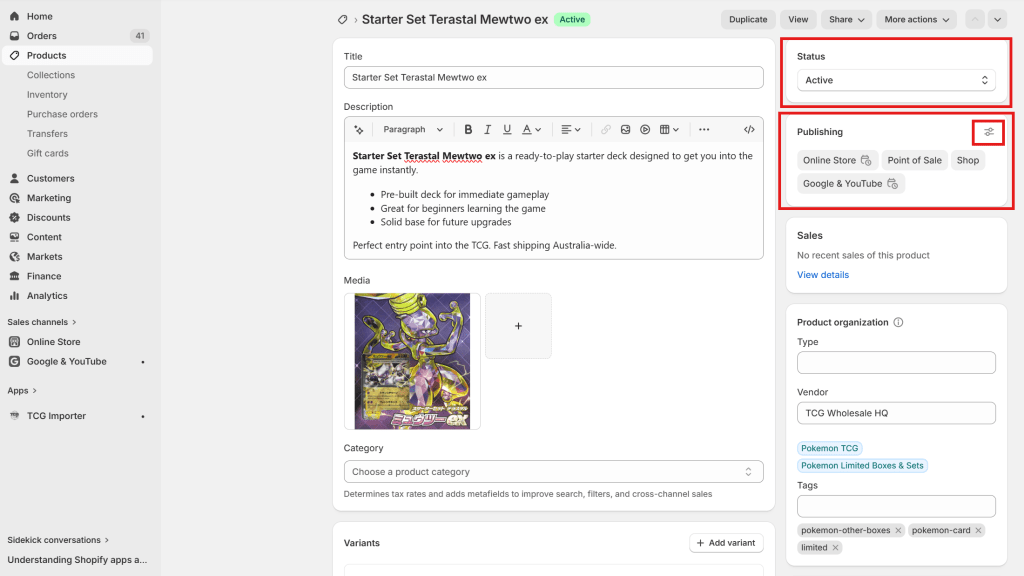
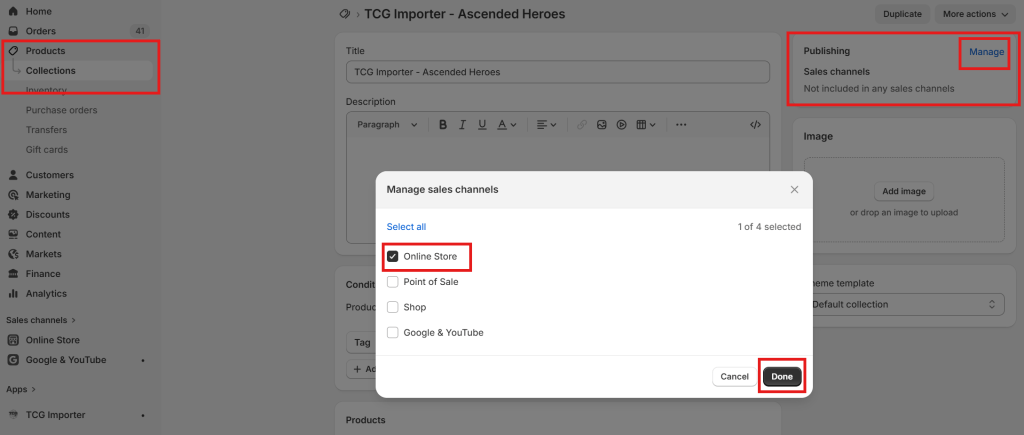
When you import a product from TCG Importer you need to ensure the following before it shows up on your site.
- Change the product Status from DRAFT to Active in the product
- Change the Publishing to your Sales Channels (Online Store, Shop, Point of Sale)
- If your product has been added to a Collection, you need to also make sure that collection is publishing to your sales channels.
6. Live Price Syncing #
If Live Pricing is ON:
- Your products prices will sync every 4 hours.
- Prices are updated using PriceCharting market data.
- All prices are converted automatically to your store currency based on real-time FX rates.
- You can rename a product, the app still tracks it using a permanent internal ID, ensuring updates continue to apply.
7. Importing Sealed Products #
The Product Importer works similarly to the Card Importer.
You can:
- Select sealed products
- Import with markup
- Enable/disable live pricing
- Choose image imports
- Apply tax
- View the currency flag for your currency
- You can head over to our Discord and Apply for Partner access which will give you access to our Warehouse Pricing lists for Japanese and Chinese TCG Products.
8. Product Import Flow (Sealed Products) #
- Select products from the list.
- Click Import Selected Products.
- Configure:
- Import images
- Enable live pricing
- Markup % (automatically calculated)
- Manual editable price (if live pricing disabled)
- Charge tax checkbox
- Confirm import.
- Products are created in Draft mode.
9. Currency Detection #
The importer automatically:
- Detects your Shopify store’s default currency
- Converts all market data into your currency
If you need to change your TCG Importer Currency, you will need to go to the TCG Importer App on Shopify and go to the front page and select “Shopify Settings”.
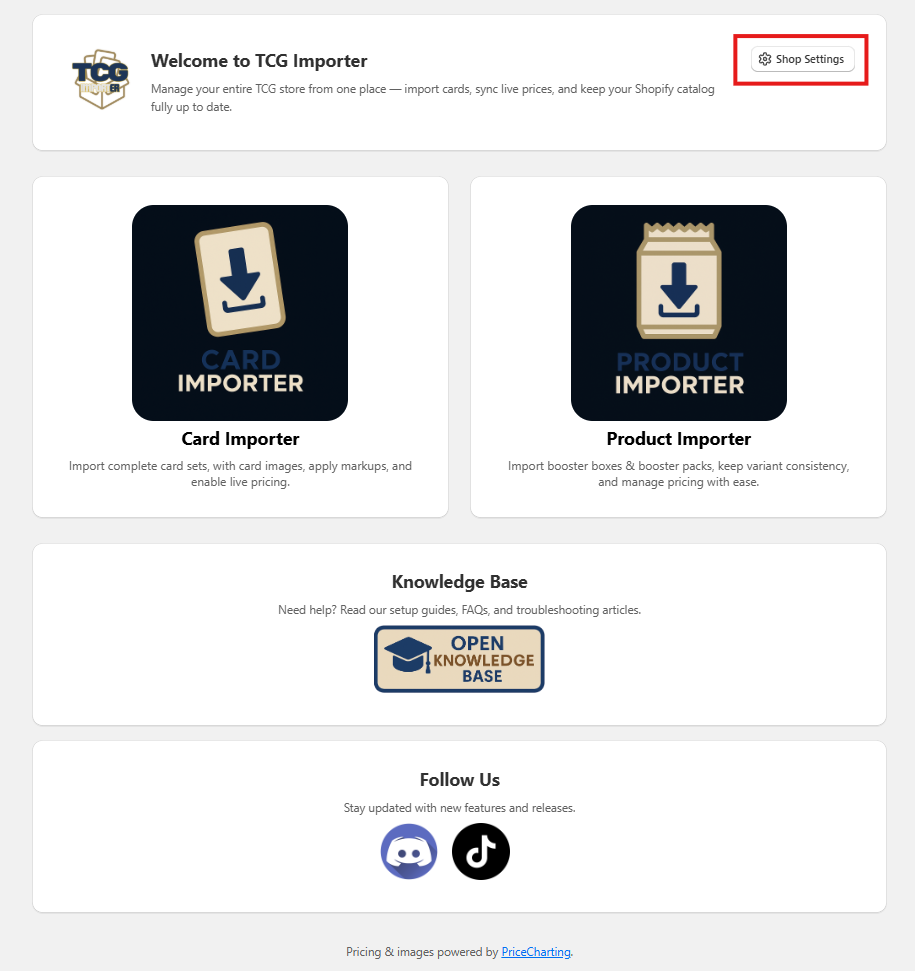
In the Shop Settings, you will be able to change your currency. Once you have selected it, press Save and wait until you get a prompt that says Settings Saved.


10. Where Prices Come From #
- All data comes from our internal database, which we update ourselves.
- This app does not call external APIs on the front end.
- PriceCharting provides image and market data which we attribute inside the app.
11. Accreditation #
All PriceCharting images and data used inside the importer include:
Image & price data © PriceCharting — https://www.pricecharting.com
Support & Wholesale Access #
If you need technical support, have questions about TCG Importer, or want to access our wholesale product pricing, the fastest way to get help is through our Discord.
Inside the server you’ll find:
- 💬 Support Tickets
- 🎫 Wholesale Access Application
- 📦 Exclusive Wholesale Price Lists
- 🔔 Updates & Announcements
- 🧑💻 Direct Access to Our Team
👉 Join our Discord: https://discord.gg/4v3kY2K2Qs


